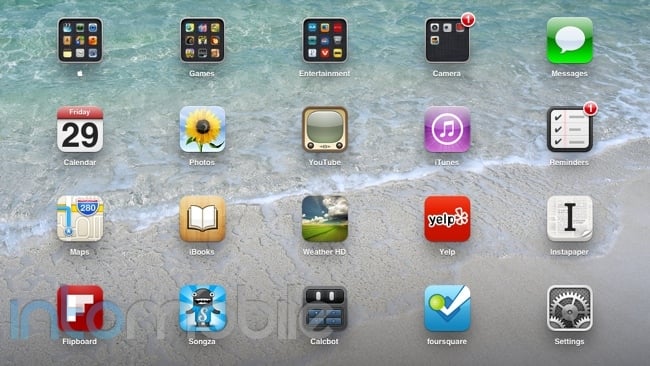
Like a snowflake, no two iPad or iPhone home screens are alike. Everybody has their own personal preference for setting up the apps on their iOS device and, of course, everyone has their own apps. Some are even so meticulous about the layout of their home screen that you’d think they’re furnishing a new home. I thought I’d take the time to share the apps I have on my home screen to perhaps inspire your creative minds.
The top row of apps on my iPad consists of all my folders and if I’m using the iPad in landscape mode, it also has the Messages app. The four folders I have are labeled with the Apple logo, Games, Entertainment, and Camera. I always get a lot of questions about how I got the actual Apple logo as a folder title, so if you’re interested, go to this website called Glyphboard on any iOS device to copy and paste the logo or other symbols into any text field. The Apple folder is for all the Apple-branded apps on my iPad that I don’t use often.
Games, Entertainment, and Camera are all there just as an easier way to be able to store a larger amount of my apps on the first home screen. Without going through the entire list, I’ll name some of my favorites in each category. World of Goo, Jetpack Joyride, Temple Run, and Angry Birds Space are my four go-to games on the iPad. Netflix, IntoNow, and Vevo are three notable apps under the entertainment category. Lastly, the Camera folder has but four apps: Camera, FaceTime, Photo Booth, and iPhoto.
Before getting to the main apps, first let me just point out that the layout of my iPad is more organized when in portrait mode because that how I use my iPad more often than not. The first row is all folders, the next two rows are all Apple apps, the last two rows are mostly third-party apps I use most, and then there’s the dock. This gets jumbled up when switching to landscape, so I’m going to describe it in terms of the portrait layout.
That said, the first two rows are Apple apps that I use frequently enough that I don’t think they should be shoved into the folder. These include Messages, Calendar, Photos, YouTube, iTunes, Reminders, Maps, and iBooks. They’re pretty self-explanatory. After that come seven apps from the App Store and Settings. Let’s run through them.
My Prestigious Home Screen Apps
Weather HD: Since the iPad doesn’t come with a weather widget like the iPhone does, most people just settle with The Weather Channel app. I have that on the second page of my iPad home screen, but it’s always been slow and poorly designed. For $0.99, Weather HD is a really stunning app that presents you with fantastic views different weather conditions based on your own. It can show an hourly or weekly forecast as well.
Yelp: You’re probably familiar with Yelp. It’s the perfect free app to use for traveling — it’ll show you venues nearby, contact information, reviews, etc. I’ve used it faithfully for a few years now. It’s also what powers restaurant recommendations in Siri and soon some of the maps functionality in iOS 6.
Instapaper: Developer Marco Arment pours his heart and soul into this app and it shows. It’s not free like competitors Pocket or Readability, but it’s generally considered the best read-it-later app in the App Store in terms of design and features and I concur. It’s still pretty reasonably priced at $2.99.
Flipboard: Flipboard has been on my home screen since the very first day I got my iPad. It shines for catching up on all of your feeds for the day or discovering new content too. Its design makes it really easy to navigate and the reading experience is top-notch. Best of all, it’s free.
Songza: This app just got promoted to my home screen about a week ago. A friend recommended Songza and I’ve used it non-stop ever since. It’s a free music service that focuses on providing you with the exact type of music you’re yearning for at any given part of the day. I just launched it now while writing this and it recognizes that it’s Friday evening. My playlist options are Pre-gaming with Friends, Unwinding After a Long Week, Drinking at a Bar, Cooking, Hosting a Cocktail Party, or Eating Dinner. You can dive into further detail after picking one of these initial categories, too, or browse all the playlists on your own. Since discovering Songza, I’ve gotten into the habit of using it almost every day.
Calcbot: I needed a calculator on my iPad and Calcbot fit the bill. There’s a lot of free options available, but I chose to pay $1.99 for its awesome design and extended feature set. It has scientific functions and also has a history of your calculations listed if you flip into landscape mode.
Foursquare: Foursquare doesn’t have a native app for iPad (even though I wish it would) so I cheated. I just added the main website as an icon on my home screen, but the website has been designed to work really well with the iPad so for now, it’ll have to do. Plus, I like stalking where my friends are.
Finally, my irksome all-blue dock features Safari, Facebook, Twitter, Mail, and the App Store.
So that’s that! Feel free to click the bold app titles to download from the App Store if any of them piqued your interest. Be sure to also share some of your favorite apps in the comments section below — I’m always looking to swap recommendations.