 You’ve been secretly complaining about how tedious it can be to toggle some of the Palm Pre’s connectivity features. You’ve probably even told yourself that there was just nothing you could do to make it easier to access Data, Wi-Fi, GPS, Bluetooth and Airplane modes. And, today, you stand corrected. Enter the latest home-brew webOS app for the Palm Pre: Quick System Tasks.
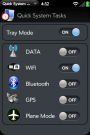
The new webOS app does exactly what its name suggests – it makes everyday system tasks quickly and easily accessible. With Quick System Tasks aggregating all your frequently-used system settings, you’ll have Data, Wi-Fi, GPS, Bluetooth and Airplane modes conveniently grouped in a “card” or the “dashboard.”
I’ve personally found that it can be a little frustrating having to hunt down the various system settings strewn throughout the webOS. It’s not a huge deal, but it’s enough of a hassle to give this new app a solid niche to do its thing, home-brew style. Good thing lazy people like me have developers looking out for them.
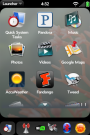
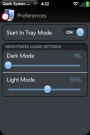
The pictures you see here will give you an idea for what Quick System Tasks looks like.
Download Quick System Tasks here.
[Via: PreCentral]