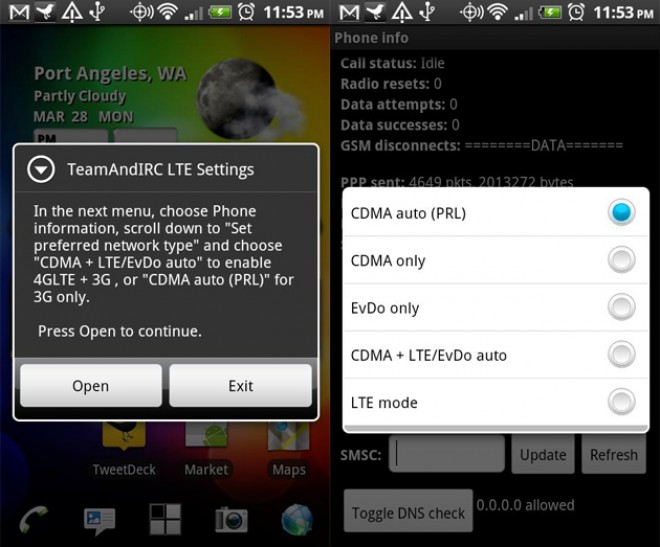

Verizon’s 4G LTE network gives the USA a taste of data speeds never before seen from a wireless network, and just saying that the burgeoning Verizon data network is fast is an understatement. However, the first LTE supported phone from the carrier, the Thunderbolt, lacks the battery power to keep up with the blazing network. Previously, the only way to turn off the LTE radio on the handset was with a code to access the hidden menus, but that method was less than, shall we say, “elegant?” Now there’s an easy way do get the task done, and it’s called LTE onOFF.
In reality, most Android phones experience poor battery life, some better than others, but the Thunderbolt seems to be the worst of the bunch. Thankfully, this little app, made by TeamAndIRC, makes it easy to turn off the battery eating 4G radio. All you need to do it launch the application, and you’ll easily be able to choose your preferred network type. While we would have preferred a simple widget that will just turn the 4G/LTE radio off, (and we’re sure we’ll see one in due time) the application keeps it about as simple as can be.
When the preferred network type options appear, you’ll get more than just a couple of options, but one needs only pay attention to two of them. Selecting the ” CDMA auto (PRL) ” will turn your 4G radio off, and leave you with a 3G phone, which could theoretically help your battery life. To get the blazing fast data turned back on, select the “CDMA + LTE/EvDo auto”.
There’s no guarantee that turning off the 4G/LTE radio will significantly increase the Thunderbolt’s battery life, but you should be able to squeeze out a bit more juice out the handset should you disable that extra radio. Even if you’re not in a LTE network, the 4G radio can still drain the battery by scanning for a tower, so you can still benefit from the application.
Let us know if you notice any significant changes in battery life of your Thunderbolt!
[Via: AndroidAndMe]