IntoMobile

Breaking news, information, and analysis on the latest mobile phones and mobile technology

Open NavigationOpen Search
  • Home
  • Platforms
    • iOS / iPhone OS
    • Android
    • Windows Phone
    • BlackBerry OS
  • Hardware
    • New Hardware
    • Tablets
    • Reviews
    • Rumors
  • Carriers
    • AT&T
    • Sprint
    • T-Mobile
    • Verizon
  • Manufacturers
    • Apple
    • Samsung
    • HTC
    • LG
    • Motorola
  • Best VPNs
  • Best AI Tools

How-To: Add an RSS widget to your Symbian S60 5th Edition smartphone’s homescreen

June 15, 2011 by Dusan Belic - 1 Comment

Share on Twitter Share on Facebook ( 0 shares )

If you own some of the older Symbian S60 touchscreen smartphones such as the Nokia N97, N97 mini or C6-00 – you may’ve noticed that adding an RSS feed on the homescreen isn’t as straightforward as it should be (or at least me thinks so). On the other hand, it’s not an impossible task and here we’ll show you how to do it.

First, you’ll need to subscribe to the feed you want on your homepage:

  1. In the Web browser open a website which has an RSS feed, bring up the actions menu pane and tap on “Subscribe to feeds.”
  2. Here you’ll see all RSS and/or AROM feeds the website offers. Tap the feed you want to subscribe to and then “Select.”
  3. Next tap “Options” and scroll down to “Settings,” then “Web feeds” and set a valid access point (3G or Wi-Fi).
  4. Now you can set update frequency (i.e. 15 minutes) by taping “Back” a couple of times and then “Options” -> “Edit.” Once you’re done, “Save” the settings.

This ends the first part. Return to the homescreen (press the “Menu” button twice) and follow the next few steps:

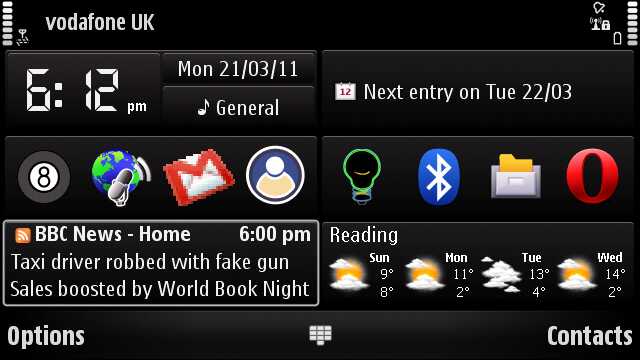
  1. Tap “Options” -> “Edit Content” and then tap on a blank widget space.
  2. Tap “Add content,” pick the RSS feed you subscribed to previously and “Done.”

And you’re good to go!

There’s one caveat though – after a period in the “Offline” mode (i.e. flight), your homescreen can stay as “Content in offline mode.” To get it back to normal, hit “Options” and then “Content to online mode.”

Hope it helps. 😉

[Via: AllAboutSymbian]

Share on Twitter Share on Facebook ( 0 shares )

Back to top ▴

Back to top ▴

Follow IntoMobile

38k
36k
4k
13k
12k

Most Recent Posts

  • Samsung launches certified refurbished phone program in India
  • Samsung’s One UI 8.5 update begins global rollout
  • China advances 6G ambitions with 6GHz spectrum trials
  • Oppo Find X10 Pro Max camera specs leak reveals triple 200MP setup
  • iPhone 18 rumors point to split launch and smaller Dynamic Island

Get Updates Via E-Mail

  • This field is for validation purposes and should be left unchanged.

About IntoMobile

  • About IntoMobile
  • Contact IntoMobile
  • Send us News Tips
  • Privacy Policy

Social Links

  • IntoMobile on Facebook
  • IntoMobile on Twitter
  • IntoMobile on Google+
  • IntoMobile on YouTube

Copyright © 2006-2021 IntoMobile. All rights reserved.