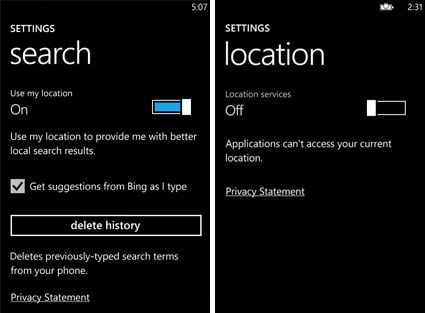
In our previous Windows Phone how-to post, we talked about cookies and how to turn them off. Today we’ll show you how to keep your location for yourself and not share it with every app that wants it. Sure you had to initially allow every app installed to use your phone’s location but at a later point you may want to turn that off.
Do this to turn off location services for ALL applications:
- Tap “Start” (Windows button), flick left to the App list, and then tap “Settings.”
- Tap “Location,” and then turn off Location services.
Additionally you can also turn on/off location services for select applications only. You’ll see “Use my location” on the “Settings” screen of the application from where you can turn the feature on or off. It’s pretty easy.