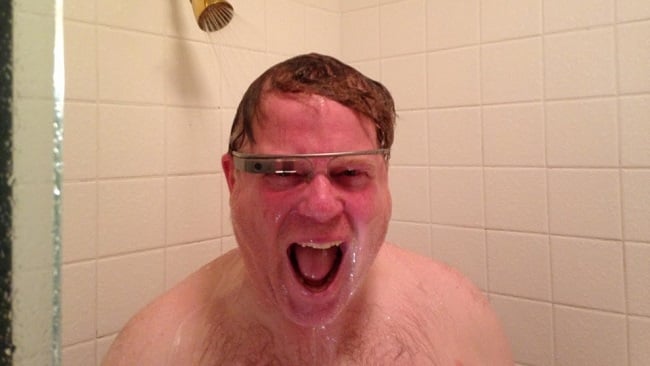
An update for Google Glass has rolled out today, allowing users to quickly respond to text messages, answer calls and send selfies. Glass users can also tap to send a message or call anyone in their Gmail contacts list, as well as being able to view full websites while searching. An array of commands to help webpage navigation have been included, such as scrolling and zooming.
The Glass updates will be rolling out automatically over the next couple of days, so keep an eye out for them to be hitting your headsets soon.
Here are a few highlights from this month’s new release on Glass:
1. Do more, handsfree
Now with Glass you can get things done without having to lift a finger. Let’s say your friend texts you. You can now say “ok glass, read aloud” to hear it and answer with “ok glass, reply.” Mom calling? Just say “ok glass, answer call.” Boyfriend away on business? Send that selfie straight away with “ok glass, share with Felix.“ #notouching
2. Say more, to friends and family
We know you have more than ten friends (at least we hope you do). Now you can tap to send a message or make a phone call to any of your Gmail “My contacts.” When you tap on “send a message to…” from the main menu, you swipe through your contacts’ profile photos and tap to send a message.
3. Learn more, on the web
We’ve been exploring ways to let you quickly dive deeper and get exactly the information you need, right when you need it. To test it out, search for something and then tap on the “View website” screen to bring up the web page.
Once you’re on the web page, there are a few ways you can explore:
Scroll – Slide your finger forward on the touchpad to scroll down.
Zoom – Slide two fingers forward or backward to zoom.
Look around – With two fingers down on the touchpad, move your head around to pan.
Click – As you look around, you can tap to select anything in the center of the screen.These updates will be rolling out automatically to your Glass over the next couple days. You can read more about other improvements in our Help Center (support.google.com/glass). We hope you enjoy them. Let us know what you think. Until next month…
#glassupdates
[Via: Google+]