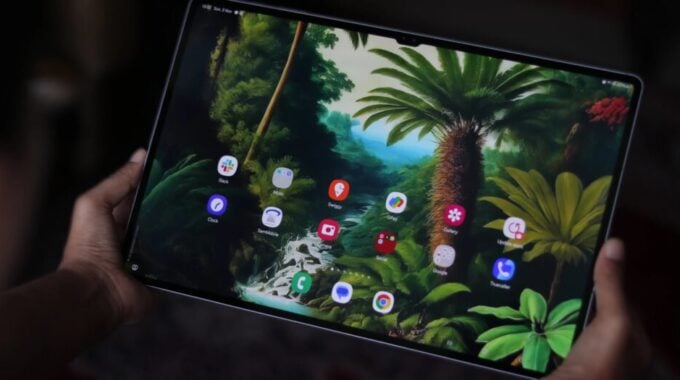
Nobody talks about taskbar placement. But spend a week using a large Android tablet one-handed and suddenly it’s all you think about. Samsung quietly added a fix for this in One UI 9.0, and it’s one of those tweaks that sounds minor until you actually use it.
As SamMobile reported, the latest One UI 9.0 update brings a new option that lets Galaxy Tab users move their favorite app icons on the taskbar to the left or right side of the screen. Before this, those icons were stuck in the center. That’s fine if you’re always using your tablet with two hands on a desk, but it’s genuinely awkward if you’re holding a big slab like the Galaxy Tab S12 Ultra with one hand and trying to tap something in the middle of the bar.
The setting is easy to find. Head to Settings, then Display, then Taskbar, and tap “Taskbar position.” You’ll get three choices: Center, Left, or Right. It works whether you’re using gesture navigation or the classic three-button nav bar. The one catch is that it doesn’t work in Samsung DeX mode, which makes sense since DeX is designed around a desktop-style layout where center placement is standard.
Right now, the feature is confirmed on the Galaxy Tab S12 series. Samsung hasn’t pushed it to older tablets yet, but given that it’s part of the broader One UI 9.0 rollout, other supported Galaxy Tab models should get it eventually. Notably, it hasn’t appeared on foldables like the Galaxy Z Fold 8, and that’s probably intentional. Foldable screens are smaller than a full-size tablet, so the taskbar icon positions are easier to reach regardless of where they sit.
So why does this matter beyond a niche quality-of-life fix? It’s part of a bigger shift in how Samsung is thinking about tablet usability. Android tablets have long been criticized for feeling like stretched-out phone interfaces, and Samsung has been working for a few years now to make One UI on tablets actually feel purpose-built. The taskbar itself was a major step in that direction, giving Galaxy Tab users something that resembles a proper multitasking bar. Letting people customize where their app shortcuts sit is the next logical move.
It also puts a little pressure on Apple’s iPadOS, which still has its own ergonomic quirks despite being the gold standard for tablet software. Small customization wins like this add up, especially for users who rely on their Galaxy Tab as a productivity device rather than just a media player.
- Taskbar icon alignment: Left, Center, or Right
- Works with gesture navigation and three-button navigation
- Not available in Samsung DeX mode
- Currently confirmed on Galaxy Tab S12 series
- Not yet available on Galaxy Z Fold devices
If you’re on a Galaxy Tab S12 and running One UI 9.0, go check the setting now. It takes about ten seconds to change and you might be surprised how much more natural your tablet feels after.