IntoMobile

Breaking news, information, and analysis on the latest mobile phones and mobile technology

Open NavigationOpen Search
  • Home
  • Platforms
    • iOS / iPhone OS
    • Android
    • Windows Phone
    • BlackBerry OS
  • Hardware
    • New Hardware
    • Tablets
    • Reviews
    • Rumors
  • Carriers
    • AT&T
    • Sprint
    • T-Mobile
    • Verizon
  • Manufacturers
    • Apple
    • Samsung
    • HTC
    • LG
    • Motorola
  • Best VPNs
  • Best AI Tools

FuzeBerry skin adds splash of color and BlackBerry style to TouchFLO 3D

December 22, 2008 by Will Park - 4 Comments

Share on Twitter Share on Facebook ( 0 shares )
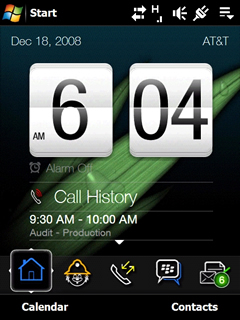
TouchFLO 3D running the FuzeBerry skin - Notice the BlackBerry icons and wallpaper image

TouchFLO 3D running the FuzeBerry skin - Notice the BlackBerry icons and wallpaper image

Windows Mobile hasn’t seen a more intuitive and sleekly designed user interface since HTC launched their TouchFLO 3D UI. The TouchFLO 3D interface rides on top of the Windows Mobile platform, optimizing it for finger-based inputs. And, it doesn’t hurt that TouchFLO 3D is easy on the eyes.

TouchFLO 3D is about as good as it gets for Windows Mobile touchscreen interface, but there’s always room for improvement.

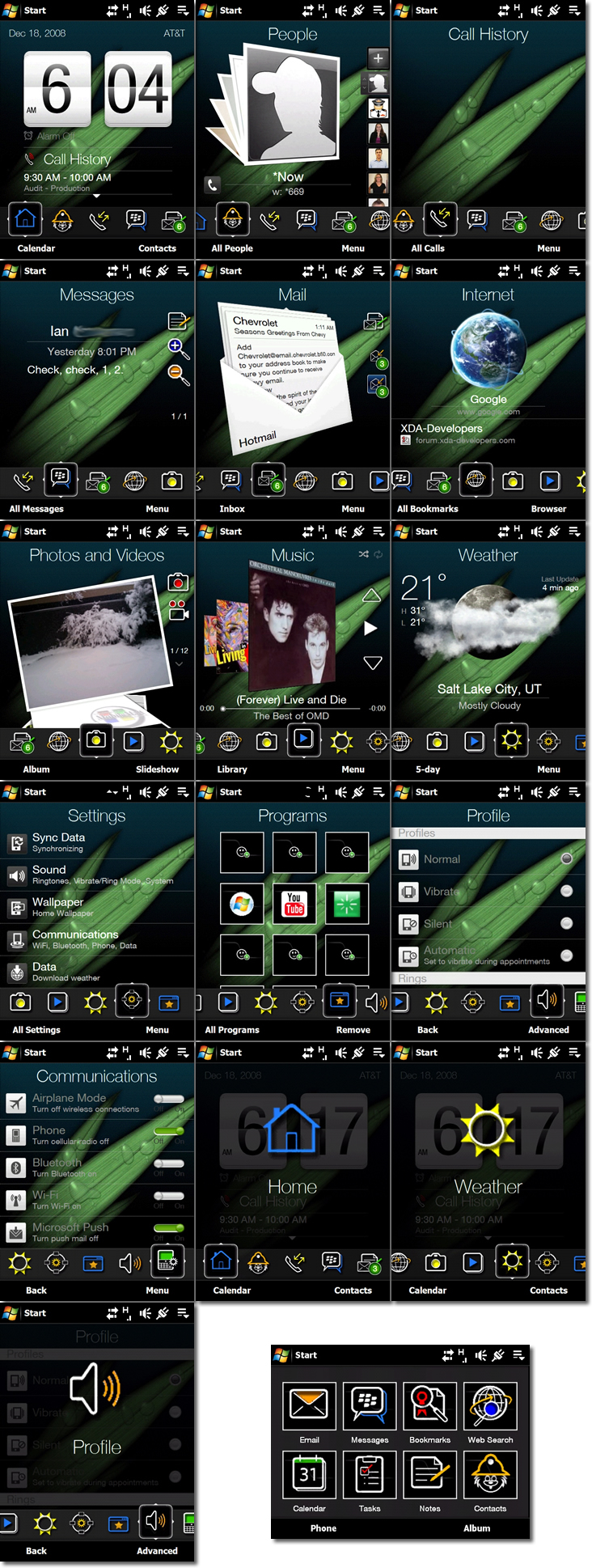
A new TouchFLO 3D skin allows TouchFLO 3D fans to change the look of their TouchFLO 3D UI. The new skin, from MobileMatt.net, allows the user to customize the wallpaper and uses BlackBerry-esque icons. The TouchFLO 3D skin, dubbed FuzeBerry for it’s ability to bring a taste of BlackBerry design to the AT&T Fuze (AT&T’s version of the HTC Touch Pro), also adds a Calendar, Call History, and Comm Manager Tab in to the mix.

For those of you looking to spice up your TouchFLO 3D interface, FuzeBerry might be worth your consideration.

Installation is a simple matter of downloading the .cab file, disabling TouchFLO 3D, and installing the skin:

  • Download FuzeBerry skin here
  • Extract CAB file
  • Copy CAB File to device
  • Disable TF3D in Settings  – Start > Settings > Today > Items
  • Install CAB file to device (do not install to storage card)
  • Re-enable TF3D
  • Go to TF3D Setting tab
  • Tap wallpaper
  • Select wallpaper from device (CAB file will install intended wallpaper)
  • Skin will accept any wallpaper and show in every tab
  • Enjoy your new skin

Jump the break for more pictures of the FuzeBerry skin in action!
[Via: MobileMatt]

Share on Twitter Share on Facebook ( 0 shares )

Back to top ▴

Back to top ▴

Follow IntoMobile

38k
36k
4k
13k
12k

Most Recent Posts

  • Xiaomi 17 Max design confirmed — it’s launching this month
  • Samsung launches One UI 9 beta program for Galaxy S26 series
  • Motorola Razr Fold arrives in India with Snapdragon 8 Gen 5 and special FIFA edition
  • Samsung’s stable One UI 8.5 update officially lands on older Galaxy phones
  • Samsung Galaxy Z Flip 8 vs. Galaxy Z Flip 7: Maybe not worth the wait?

Get Updates Via E-Mail

  • This field is for validation purposes and should be left unchanged.

About IntoMobile

  • About IntoMobile
  • Contact IntoMobile
  • Send us News Tips
  • Privacy Policy

Social Links

  • IntoMobile on Facebook
  • IntoMobile on Twitter
  • IntoMobile on Google+
  • IntoMobile on YouTube

Copyright © 2006-2021 IntoMobile. All rights reserved.