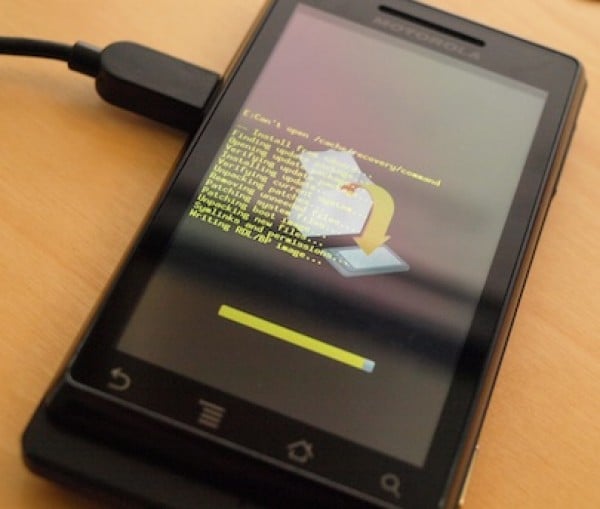
How To: Manually install Android 2.2 Froyo on your Motorola DROID for Verizon

Tuesday, August 3rd, 2010 at 2:50 PM PST
motorola droid update screen e1280870000372 How To: Manually install Android 2.2 Froyo on your Motorola DROID for Verizon

It’s here folks – the official Android 2.2 Froyo update has been leaked for the Motorola Droid, and we’ve got the instructions on how to manually install it! As expected, Verizon is rolling out the Android update to their original Motorola Android phone this week, but we know waiting for an OTA update can be painful. So, if you’re ready to get some Android 2.2 action on, keep reading to install Froyo yourself!

[Update]
Verizon is rolling out the official Android 2.2 Froyo update over-the-air as we speak. Read more about the official Android 2.2 update for your Droid here.

If you’ve been waiting to get some sweet, sweet Froyo lovin’ on your Android slider phone, this is definitely your day. Android 2.2 will enable your Droid to dial phone numbers by voice through a Bluetooth headset, run Android faster (thanks to the JIT compiler), surf the web faster (thanks to the V8 JavaScript engine), support for Adobe Flash 10.1, and a whole bunch of other cool features – without, of course, the WiFi hotspot or tethering option.

Installing the update is relatively easy, and as long as you follow the instructions you won’t have any problems.

Here we go:

  1. Download this file here
  2. Rename the file to update.zip (if you don’t see the .zip part of the file, it’s likely hidden and already in the correct format, so just name it ‘update’)
  3. Put the newly renames file onto the root of your SD card (meaning inside no folders)
  4. Turn off your phone
  5. Boot into recovery mode (Power + X)
  6. Press the volume up and camera button at the same time for the text to show up (you may have to do this a couple of times)
  7. With your D-Pad, navigate to “apply update.zip“, and hit the gold button to execute the command.
  8. Let the update install, and reboot
  9. You have Froyo!

So if that was too hard for you, maybe you just want to wait out for the Droid 2, which will have Froyo pre-installed on it when it comes out. But we don’t think the method outlined above is too painful – even the less tech-savvy people out there should be able to do this with ease. If you don’t feel like forcing your Droid to update to Android 2.2, that’s fine too, as the official OTA is said to be hitting handsets this week. Just don’t come complaining if its been a week an you haven’t received it, OTA updates can take a while.

If you just used this method, how are you liking Froyo so far? Liking the overall snappiness of the new OS build?

[Update]
Verizon is rolling out the official Android 2.2 Froyo update over-the-air as we speak. Read more about the official Android 2.2 update for your Droid here.

[Via: Droid-Life]

78 Comments on “How To: Manually install Android 2.2 Froyo on your Motorola DROID for Verizon”

  1. kel says:

    What do you mean by jig?

    • Matt says:

      Kel: HAHAHAHAHAHAHAAH

    • Will says:

      As defined by Dictionary.com: Any of several old rustic kicking and leaping dances.
      http://dictionary.reference.com/browse/jig

    • silencedogood says:

      The Jig (Irish: port) is a form of lively folk dance, as well as the accompanying dance tune, originating in England in the sixteenth century and today most associated with Irish dance music and Scottish country dance music.[1] Jigs were originally in 2/4 time, but have been adapted to a variety of time signatures, by which they are often classified into groups, including light jigs, slip jigs, single jigs, and treble jigs.

      • blakestimac says:

        Thank you for the clarification. The 'jig step' was removed since some immature viewers chose to take it to another level. It was a joke, and it looks like some people can't be civil.

    • notdadroidsyerlkn4 says:

      I think when they say jig they mean "black people".

  2. Matt says:

    Has anyone actually done this with success? I see it is downloading from a google site… So I presume it's the real thing?

  3. Chris says:

    lol… i was going to ask the same thing

  4. Chris says:

    It's some sort of cultural dance I think.

  5. freddy says:

    Might have to do the picture+volumeup buttons. I did.

  6. FoxKat says:

    You forgot after step 5, (call it Step 5.1) press Volume Up followed by Camera button to get the menus, THEN step 6.

  7. cmo says:

    5.1 You have to press camera button and volume up (+) in order to get the menu…

  8. Tim says:

    Worked for me after I figured out that I renamed the Update file update.zip.zip once I fixed it, worked like a charm.

  9. marinperez says:

    Boom. Re-ordered my Droid just to download this and see how it breathes new life. Thanks Blake.

  10. SoundsDubious says:

    Is this legit? Has anyone done this yet?

  11. Darrell says:

    there is a missing step to the above instructions. after step #5 you should hold the volume up key and the camera button, at least that was the only way I could get to to show the recovery console.

  12. Blaine says:

    Did it. Love it. Thanks!

  13. DroidFan says:

    1. Does your method support Hotspot and tethering?
    2. What will happen to your Froyo installation when the OTA arrives?
    3. Will it be possible to install this release after OTA arrives?

  14. Josh Meriano says:

    Flash 10.1 not working. On hold with Motorola as I type this.

  15. tom says:

    downloaded but flash isnt working? any help?

    • Jamey says:

      There is a way, it's not all that easy and its slow as can be. Use Google. "install flash 10.1 for motorola droid", should be the third result. Will require copying it to your phone from a PC (well it's the simplest method) similar to the Froyo update.

  16. Steelerman says:

    I get the Exclamation Mark — but the D-pad won't move me anywhere. I also tried the other method — holding volume up and camera button, but still it just sits on the exclamation mark. Wassup?

  17. @Beng2cool4u says:

    worked GREAT after long initial bootup.
    also you missed a step…before step 6 : Hit the volume up and camera button (half-way down) at the same time.

    otherwised worked great.

  18. alex says:

    your instructions are missing a few steps after holding power+x a caution icon comes up, press volume up + camera button at the same time to bring up the menu. Thanks for the update file though, I'm installing now

    I found the instructions: here: http://androidforums.com/motorola-droid/140721-ho...

  19. timm79 says:

    works fine but no flash and by doing a jig it is american term for do a little dance lol

  20. mpo says:

    not working.

  21. Viper says:

    Just tried it and when I boot into recovery mode all I get is a triangle with a exclamation mark in the middle of the triangle next to the phone icon and no option to update

  22. sdf says:

    not working for me either – i get stuck on the screen with the exclamation point and hitting vol up and camera doesnt work for me.

  23. sdf says:

    not sure what did it, but i slid the phone closed, plugged it back into the computer and tried again. it's updating now

  24. Kerry says:

    You forgot one point:

    5b. Press the Vol+ and the Camera button together until you get a menu.

    Other than that, thanks for the file and the info!

  25. FPH says:

    rename as update not update.zip otherwise its zip x 2….

  26. Ryan says:

    i have a question if i update this my self will i still be able to recieve the other update from verizon?

  27. atlantis says:

    First attempt was a quick fail: I renamed the ZIP file in Windows forgetting that my file extensions were still hidden so I renamed it "UPDATE.ZIP.ZIP"
    Needless to say the recovery console gave me the error: "update.zip does not exist"
    No fear, I'm trying again now!

  28. jamey says:

    Installed and confirmed working! Where the heck is flash???.

    • Jamey says:

      Love the snappiness! The flash is still slow and clunky, but functional. I would recommend waiting till Flash is officially released, personally.

  29. brian a says:

    worked as advertised.

  30. nichole says:

    ok i tried every thing step by step it's not working

  31. Ed says:

    Successfully installed the update. Installed the flash platform which doesn't seem to install the actual flash 10.1 application…upon clicking it seems to take you to a placeholder at the android market but nothing is there as of yet. Happy overall thought, am sure this will be addressed shortly.

    • Jamey says:

      Use Google to look for "install flash 10.1 for motorola droid". You have to save it to your phone from a PC, enable install from unknown sources, and use a file browser to "use" it and install it. It's pretty slow and kind of clunky… but I got it working…

      • Ed says:

        Downloaded the flash apk as suggested and installed via an app manager program from sd card. Worked like a champ and am running with no issues. Thanks all for your help and suggestions!

  32. nate says:

    mine will go for like 2 seconds and then the last 2 lines say E: signiture verification failed Instillation aborted.

  33. bob says:

    phone is moving really slow and barely working after this update. help

  34. Adam says:

    I've installed the update but have noticed that opening apps (browser, market, settings, maps, etc…) is extremely slow. Anyone else having this issue? Any suggestions? It's like it's opening them in slow mo!

    • Wen says:

      Mine is also pretty slow running the browser now. Also, the system seems to be less stable compared with 2.1 version. Also, the gallery application cannot play video files. It pops up for force close.

  35. Brian says:

    This works great. You can google flash for droid and find the file. I installed flash 10.1…. and it works great.

  36. Rex says:

    Was easy to update had to rename file update not update.zip. Don't have flash.

  37. phillip says:

    just did it im rebooting right now. you have to hit volume up and camera button several times to get the menu

  38. Damageinc says:

    I have tried everything to get flash to work.

    I loaded froyo yesterday (manually) which went perfectly.

    I then tried everything under the sun on the web to get flash to work on moto droid.

    I downloaded and removed
    einstalled.

    I have the .apk. I tried 2 different versions and even a nexus one version for the .apk.

    My phone says that Adobe 10.1 is installed under app management but no icon shows in app icon storage.

    It will begin to load a page and stop and give me a time out.

    It will also ask for Estrongs video player or the (i forget what the name is) factory installed software to open( it asks me) and neither can open the file.

    I imported the file from chrom to phone.Downloaded to sd card and then loaded flash player.

    It still will not play anything.

    Anyone have any ideas?

    I am not sure what side loading means but I tried those instructions also- no go.

    This is bs. You would think there would be detailed instructions somewhere for an unrooted phone.

    We waited patiently for froyo – only for the flash and it doesn't work. You cannot find the correct app to load on the app market either- the link doesn't work and the app doesn't show up although I know it is there.

    Sad thing is that i have succfully loaded it a few different ways and it still doesn't do anything.

    I think this is pathetic. I should have gotten a blackberry or anyting that has flash.The only advantage i have with this phone is free phone calls…

  39. FADER says:

    Much gracias!!!

  40. Franker says:

    No Flash 10.1 Update will not allow me to download flash 10.1. Is this a bug and has anyone come up with fix?

  41. eric says:

    Got update to install fairly easily. My phone is painfully slow since then. My CPU seems to always be at or close to 100%, if its synching with Google I literally cannot do anything else -screen even goes unresponsive. Not happy so far but hoping there’s some config issue on my phone since others are reporting increased speed.

  42. Chas says:

    Install went real smooth but now my Droid is really sluggish from the home screen to the browser. My que

  43. Chas says:

    My question is will I still be able to do the ota update??

  44. Jim says:

    Which build is this. FRG01B or FRG22

  45. chris says:

    flash doesn't work

  46. Zach says:

    I worked great! Now how do I get the flash player?

  47. Ryan says:

    My phone is also slower after the update. Real bummer.

  48. Mike says:

    I would love to try this but I just dont see the actually FILE link to download….lol

  49. Guisseppe Vera says:

    Just did it and it is working great. Still trying to figure out why I can't get onto flash sites, but so far so good.

What are your thoughts? Leave a comment...

How do I change my avatar?
Go to gravatar.com and upload your preferred avatar